


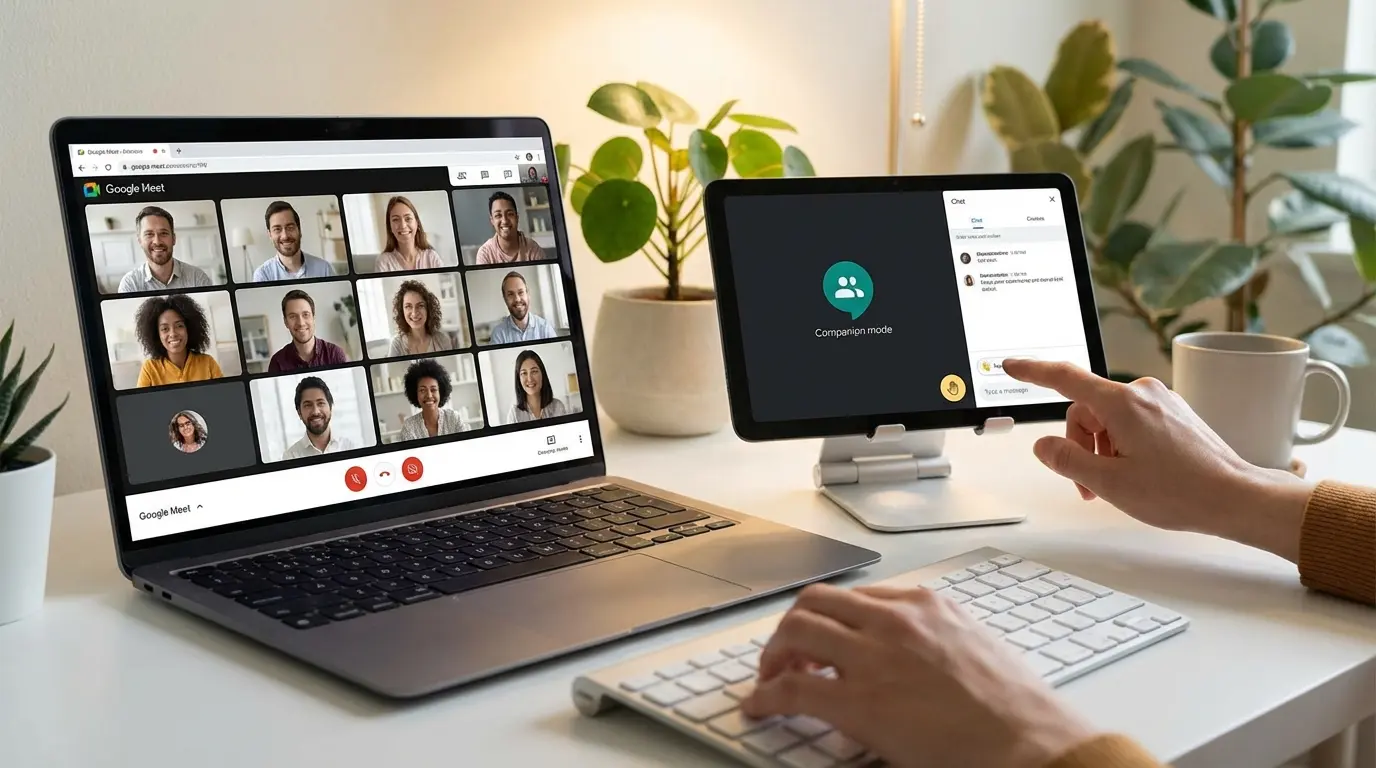
Three people in a conference room just made a decision that the four remote participants didn’t even know was being discussed. The meeting notes will say “team aligned on Q4 strategy.” What actually happened: the people in the room talked to each other while the remote folks watched through a camera pointed at the wrong end of the table.
This happens constantly. And Companion Mode in Google Meet exists because someone at Google finally admitted it.
Look, Companion Mode isn’t about backup audio. I know that’s what the documentation sounds like, and I know that’s how your IT team explained it, but that’s not what it’s for. Google built this because people in conference rooms were steamrolling people on video calls, and nobody wanted to admit that’s what was happening. The feature lets everyone in the room join the meeting on their own device while the room system handles shared audio and video. Which means everyone gets equal access to chat, reactions, hand-raising, polls, breakout rooms. All the stuff that gets buried when ten people share one screen.
The scale matters here. Google Meet serves 300 million users each month. That’s a stupid number of hybrid meetings happening right now, most of them with the same problem: the people in the room don’t realize they’re steamrolling the people on video.
You’ll know this is working when remote participants stop being polite ghosts. They’ll interrupt more. They’ll challenge ideas. They’ll send reactions when someone says something dumb. That’s good. That means they feel like they’re actually in the meeting.
Why Your Hybrid Meetings Have a Power Problem
Five people around a table, three on video. The room wins immediately.
They control where the camera points. They can read each other’s faces. They dominate the conversation because they can just talk to each other. Remote people are boxes on a screen. Sometimes the boxes don’t even have faces.
You’ve seen this. Someone in the conference room makes a joke, and the whole table laughs while remote participants sit there confused because the room mic didn’t catch it. Or the team brainstorms on a whiteboard that’s barely visible on camera, effectively excluding anyone not physically present.
It’s infuriating.

The participation gap is measurable: research shows that hybrid meetings attract 40% more participants than in-person ones, which makes the equity problem even more critical. More people in your meetings means more people getting ignored if you don’t fix the infrastructure.
Companion mode in google meet tackles this by making sure that being physically present doesn’t automatically grant you more meeting privileges. Everyone gets the same interface. Same controls. Same ability to contribute through digital channels.
Conference room setups are designed for the room, not for equity. The person sitting closest to the camera gets more face time. Whoever’s near the microphone gets heard clearly. Everyone else? Background noise.
And it compounds. Week after week, the same people dominate because they happen to sit in the right chair. That’s not a meritocracy, that’s room geography.
When each person joins on their own device (with audio and video off to avoid feedback), they gain individual agency. They can spotlight who they want to see. They can read chat messages in real time. They can raise their hand without literally interrupting someone mid-sentence. Meet companion mode provides that individual layer of participation that traditional conference room technology simply cannot deliver.
What Actually Happens When You Turn This On
Technically, you’re joining the meeting twice. Once through the room speakers and camera. Once through your laptop.
Sounds redundant. Isn’t.
Google’s backend detects that you’re in the same physical space and automatically mutes your device microphone and camera to prevent feedback. Your laptop becomes your control panel for everything else. You get your own view controls, your own notification stream, your own ability to participate in polls or use live captions without asking someone to enable them for the whole room.
The system treats you as both a collective participant (through the room) and an individual contributor (through your device). Which is exactly what hybrid collaboration requires but rarely gets.
|
Connection Type |
Audio/Video Status |
Interactive Features |
Primary Use Case |
|---|---|---|---|
|
Room System |
Active (shared output) |
Limited to room controls |
Collective audio/video presence |
|
Companion Device |
Muted by default |
Full access (chat, polls, reactions, hand-raising, Q&A) |
Individual participation and control |
|
Standard Join |
Active (individual) |
Full access |
Remote participants or solo users |
You’re not replacing the room connection. You’re layering on top of it. The room system still handles the primary audio output (so everyone hears the same thing at the same time) and typically manages the main camera feed showing your physical space. Your personal device becomes your control panel.

Your device microphone? Automatically muted. Your camera? Disabled by default. Google’s doing the heavy lifting here to prevent audio feedback and video duplication, which means you don’t need to remember to toggle these settings manually. Though you should still verify, because technology isn’t infallible.
What stays active: your ability to see all participants in gallery view, access the chat sidebar, use reactions and emojis, raise your hand, respond to polls, join breakout rooms individually, enable live captions for yourself, and control your own screen if you need to present.
Here’s a real example. A friend’s company tried this last month. Product meeting, six people in the room, two remote. One of the remote people (their head of engineering) kept trying to point out a technical constraint that would kill the whole timeline. He put it in chat twice. Nobody saw it. They spent 30 minutes planning something that couldn’t be built. He finally unmuted and interrupted, but by then they were annoyed at him for “being negative.”
He wasn’t being negative. He was trying to save them from wasting a month. But because he was remote and they were in the room, his input felt like an interruption instead of a contribution.
With companion mode in google meet, everyone in that room would have had their laptop open. Someone would have seen his chat messages. The conversation would have shifted before they wasted half an hour.
This Is Really About Who Controls the Meeting
Google meet companion mode is essentially Google’s admission that single-screen collaboration doesn’t serve hybrid teams well. We’ve spent years trying to make remote workers feel included by buying better cameras and microphones, but we haven’t addressed the fundamental interface problem: when you share a screen, you share control. And shared control means someone always loses out.
Every time you enable Companion Mode, you’re making a choice about whether physical presence should grant additional privileges or not.
Traditional conference room setups create implicit hierarchies. The person closest to the controls can mute others, advance slides, or share their screen most easily. The person with the loudest voice dominates because the room mic picks them up best. The person who understands the room tech becomes the de facto meeting operator.
Meet companion mode disrupts these power structures by giving every individual the same technical capabilities regardless of where they’re sitting. That’s not just convenient. It’s democratizing.

In traditional setups, one person typically manages the room system. They decide when to mute the mic, which camera angle to use, whether to show gallery view or speaker view, and when to pull up shared content. That person becomes a gatekeeper, whether they intend to or not. They’re making micro-decisions that shape who gets seen, who gets heard, and what gets prioritized.
Google meet companion distributes that control back to individuals. Fewer bottlenecks. Less dependency on whoever’s sitting closest to the control panel.
The Chat Problem
Remote participants use chat constantly because it’s their primary way to interject without interrupting. In-room participants rarely check it because they can just speak up.
This creates a two-tier conversation where critical comments, questions, or links get dropped into chat and ignored by half the room. I’ve watched a VP miss a critical chat message that would’ve stopped a bad decision because he was too important to check his laptop. Cost them six weeks of work.
Companion mode in google meet forces in-room folks to have their own screen open, which means they’re more likely to see and respond to chat messages. That’s a subtle but significant shift in meeting dynamics.
Reactions and Hand-Raising
When you’re remote, raising your hand is a button click. When you’re in the room without Companion Mode, you either literally raise your hand (which feels awkward and often gets missed) or you interrupt.
Giving everyone the same digital participation tools levels the playing field. Google meet companion provides these participation mechanisms that work identically whether you’re in the room or across the country.
Remote people apologize constantly. “Sorry, can you repeat that?” “Sorry, I think I’m having audio issues.” “Sorry to interrupt.” They’re not sorry. The setup is broken.
When You Actually Need This (And When You Don’t)
Not every meeting benefits from Companion Mode. You need to match the tool to the meeting type, size, and purpose.
Large all-hands presentations where interaction is minimal? Probably overkill.
Small working sessions where you’re collaborating on a document or making decisions together? Absolutely worth it.
The key question is whether individual participation matters for the meeting’s success. If you need everyone contributing ideas, voting on options, or engaging with shared content, meet companion mode gives you the infrastructure to make that happen equitably. If you’re delivering information one-way and questions are handled at the end, the added complexity might not be worth it.
Brainstorming sessions where you need everyone throwing ideas into a shared space? Perfect. Strategy meetings where you’ll be voting on priorities or directions? Absolutely. Workshops that include breakout discussions or collaborative exercises? Essential, because breakout rooms become far more functional when everyone has individual access.
Training sessions where participants need to follow along on their own screens or access supplementary materials? Valuable. Any meeting where you’re using polls, Q&A features, or live collaboration tools? Companion mode in google meet makes these features accessible to everyone, not just whoever’s controlling the room screen.
Quick standups where everyone’s just giving status updates? You don’t need it. Brief check-ins that are mostly informational? Skip it. Meetings where only one or two people are presenting and interaction is minimal? The added complexity doesn’t add value.
You should also consider meeting length. For a 15-minute sync, asking everyone to join on their devices might take up a quarter of your meeting time. For a two-hour working session, that same setup time becomes trivial.

Some teams will embrace this immediately. They’re already comfortable with video calls, they manage multiple devices regularly, and they’ll appreciate the added control. Other teams will struggle. They’ll forget to mute their devices, they’ll get confused about which screen to watch, they’ll find the whole thing overwhelming.
Start with teams that are already tech-comfortable and expand from there based on what you learn. The worst approach is mandating it universally without considering context.
How to Set This Up Without Creating Chaos
Implementation matters as much as the feature itself. You can’t just announce “we’re using Companion Mode now” and expect smooth adoption.
Everyone joins on their laptop. Half of them forget to mute. Feedback screech. Someone’s camera is on showing their ceiling. This is normal for week one.
Create a simple guide that covers the basics: how to use companion mode in google meet when joining, how to verify your mic and camera are off, where to position your device so you can see both your screen and the people in the room, and who to ask for help if something’s not working.
Before the meeting starts, participants should know whether Companion Mode is expected or optional. That needs to be in the calendar invite, not assumed. They should join the meeting on their device before entering the room if possible, which gives them time to troubleshoot connection issues without holding up the meeting.
Once they’re in the room: verify that your device mic and camera are muted (Google usually handles this automatically, but check anyway). Position your device where you can glance at it without fully turning away from the room or the main screen. This usually means slightly to the side, not directly in front of you.
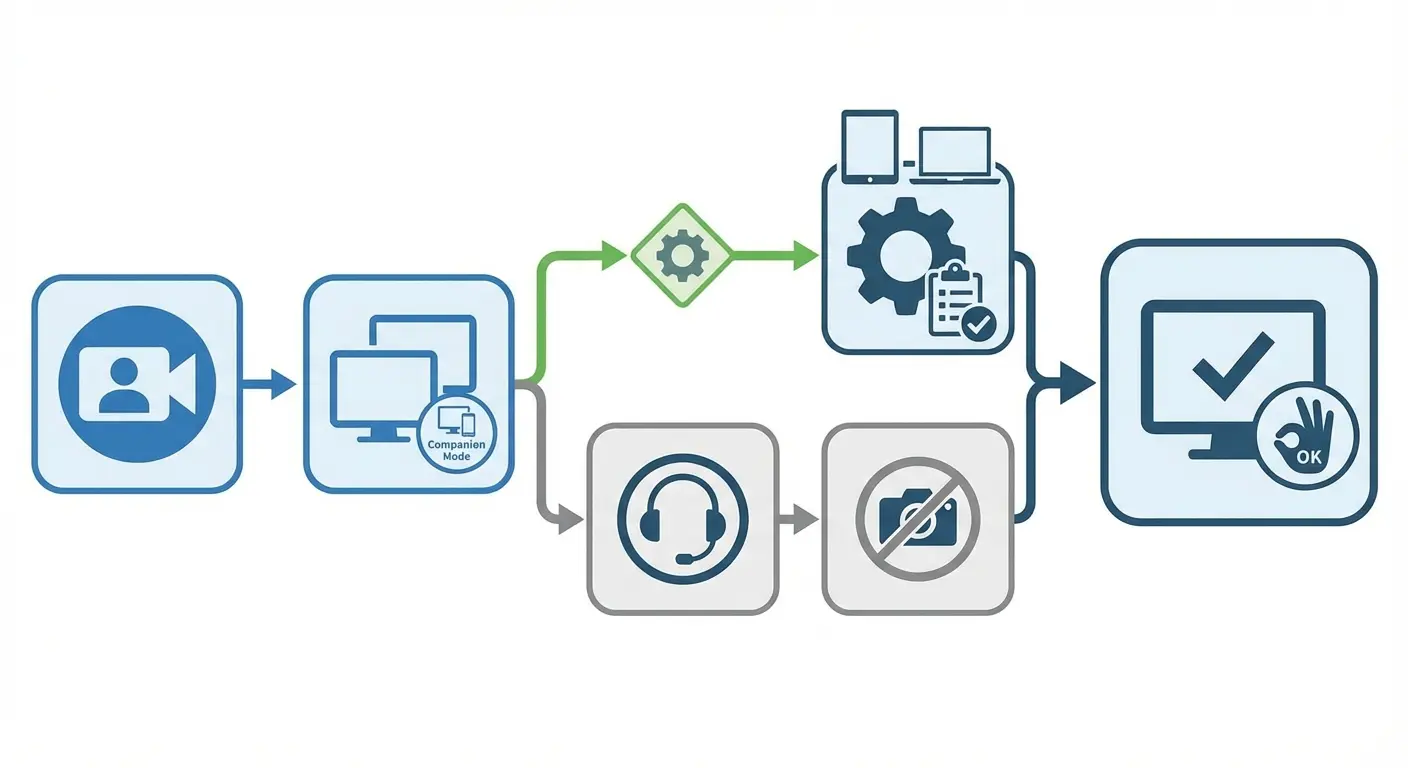
Your conference room needs to support this. That means sufficient desk or table space for everyone to have a laptop open alongside notebooks and other materials. It means strong, reliable Wi-Fi that can handle multiple concurrent video streams without dropping quality. You might need to add power outlets or charging stations if meetings run long.
Test the room acoustics to make sure the room speakers don’t create weird feedback loops with devices even when mics are muted. This is rare but possible with high speaker volumes.
Technology fails. Someone’s device won’t connect. Someone forgot to mute and creates feedback. Someone can’t figure out how to enable Companion Mode. You need a designated person (usually the meeting organizer or a tech-savvy team member) who’s responsible for troubleshooting these issues quickly without derailing the meeting.
Most issues resolve in under a minute if someone knows what to look for. Is the person joining the right meeting link? Is their audio muted? Have they enabled google companion mode specifically, or did they just join normally? Without that designated troubleshooter, you’ll waste five minutes while everyone tries to help and nothing gets fixed.
The New Etiquette Nobody’s Figured Out Yet
New technology creates new social norms, and Companion Mode is no exception. You now have to figure out where it’s acceptable to look during a meeting.
Is it rude to be staring at your laptop screen when someone’s speaking in the room? What about typing in chat while someone’s presenting?
These questions didn’t have clear answers before because in-room participants weren’t expected to be actively using devices. Now they are, and that requires new shared understanding about what’s appropriate. The etiquette stuff is still weird. We’re all figuring it out.
There’s also the question of dual-screening attention. When you’re in the room but also on your device, you’re splitting focus between physical and digital spaces. That can feel disengaging to others in the room who might interpret your screen attention as distraction rather than participation.
You need explicit conversations about these norms, because assumptions will vary wildly across your team. Some people will think looking at your screen shows you’re engaged and taking notes. Others will think it means you’re not paying attention. Both interpretations are valid, which is exactly why you need to align on expectations.
You’re in a room with colleagues, but you’re also looking at your laptop. How much screen time is acceptable before it seems like you’re disengaged? This varies by meeting type. In a working session where everyone’s collaborating on a shared document, heavy screen focus is expected. In a discussion-based meeting, constant screen attention might signal distraction.
The solution isn’t to ban screens (that defeats the purpose of meet companion mode) but to be intentional about when you’re looking at your device and why.
In-room participants can now drop comments into chat just as easily as remote folks. That’s good for inclusion, but it also means you might have parallel conversations happening in the room and in the chat simultaneously. Should you read chat messages aloud so everyone’s aware of them? Should you expect people to monitor chat themselves? What happens when someone asks a question in chat while someone else is speaking out loud?
These situations require real-time judgment calls. Your team needs some shared understanding of how to handle them.

Some team members will want to signal full attention by closing their laptops during certain discussions. That’s fine, but it also means they’re opting out of Companion Mode benefits temporarily. Make that acceptable rather than treating it as non-compliance. The goal is equitable access, not mandatory device usage.
How This Actually Solves the Hybrid Inequality Problem
Remote participants stop being afterthoughts. They’re not waiting for someone in the room to remember to check chat or wondering if anyone can hear them properly. They have the same interface, the same capabilities, and the same visibility as everyone else.
Meanwhile, in-room participants gain access to features they were previously locked out of. Individual view controls, direct access to captions, personal screen sharing without fighting for the room system.
The inequality problem in hybrid meetings isn’t just about making remote workers feel included (though that matters). It’s about the compounding disadvantage that builds over time when certain team members consistently have less access to information, fewer opportunities to contribute, and weaker connections to decision-making processes.
Google meet companion mode addresses this by ensuring that your physical location doesn’t determine your meeting experience. When people feel they have equal standing in meetings, they’re more likely to speak up, challenge ideas, and contribute fully. That’s the business case: equitable meetings produce better outcomes because you’re hearing from your entire team, not just the people who are loudest or closest to the camera.
You know this pattern. A remote participant tries to interject, gets talked over, tries again, apologizes for interrupting, finally gets their point across, then apologizes again for the technical awkwardness.
Companion mode in google meet gives them alternative entry points. They can raise their hand digitally, drop their thought in chat, or use a reaction to signal they want to speak. These aren’t perfect solutions, but they’re additional pathways that don’t require interrupting or apologizing.
Conference room cameras typically show the table from one angle. If you’re sitting outside that frame or your face is partially obscured, remote participants can’t read your expressions or body language. When everyone joins on their own device (even with camera off), they show up in the participant list with equal weight. Remote attendees can see who’s in the meeting and who’s speaking without trying to identify people from a wide-angle room shot.

Meetings where decisions get made often favor people in the room because they can read the room’s energy, jump in during natural pauses, and build on each other’s comments in real time. Meet companion mode doesn’t eliminate that advantage entirely, but it does create more transparency around who’s contributing what. When someone raises their hand digitally, everyone sees it. When someone drops a critical question in chat, there’s a record. These digital breadcrumbs make it harder for good ideas to get lost just because they came from someone who wasn’t physically present.
The Mistakes That Kill Adoption
People get this wrong in predictable ways, and those misunderstandings kill adoption before the feature has a chance to prove itself.
The biggest misconception is that Companion Mode is primarily about audio backup. That you enable it so people have a secondary way to hear if the room system fails. That’s occasionally useful, but it’s not the point. Companies think this is about backup audio. It’s not.
Another common mistake is thinking you should only use it when remote participants are on the call. Wrong. The feature works best when everyone in the room uses it regardless of whether anyone’s dialing in remotely, because it standardizes the interface and ensures everyone has access to the same participation tools.
Some teams also believe google companion replaces the need for good room hardware. Backwards. You still need quality microphones, cameras, and speakers for the shared room experience. Google companion supplements that infrastructure, it doesn’t substitute for it.
We spent $40K on a conference room camera system and remote people still can’t see the whiteboard. That’s not a technology problem, that’s a we-don’t-actually-care problem.
There’s also confusion about whether it’s appropriate for certain meeting types or company cultures. Some organizations worry it’ll make meetings feel less personal or create distance between people who are physically together. That’s a valid concern, but it stems from thinking about the technology in isolation rather than as part of a broader hybrid meeting strategy. The tool itself doesn’t create distance. Poor implementation and lack of clear purpose do.
The platform’s reach matters here: Google Meet is the second most used video conferencing platform in the world, behind Zoom, meaning millions of teams are navigating these exact implementation challenges daily.

If you position Companion Mode as a redundancy measure, people will only enable it when they’re worried about technical failures. They’ll miss the value: individual control, equal access to features, and participation equity. You need to communicate the real purpose upfront, or teams will use meet companion mode wrong and conclude it’s not worth the hassle.
Making Companion Mode standard for certain meeting types regardless of who’s attending creates consistency. That way, the behavior becomes routine and people don’t have to make a judgment call every time about whether it’s necessary. This inconsistent experience where sometimes people join on devices and sometimes they don’t means nobody builds the habit or gets comfortable with the workflow.
Expensive cameras and microphones improve the shared room experience, but they don’t give individuals personal control over their interface. You can have the best room setup in the world and still create participation inequities. Companion Mode and quality room hardware serve different purposes. You need both.
Actually, I’m probably overselling the equity angle here, but honestly, after watching how many companies botch hybrid meetings, I think it’s worth overcorrecting.
Measuring Whether This Actually Works
You can’t improve what you don’t measure, but most teams never bother assessing whether Companion Mode is delivering value.
Start with participation metrics. Are remote participants contributing more in chat, raising hands more frequently, or responding to polls at higher rates after you implement google meet companion mode? Track those numbers before and after adoption.
You should also survey both in-room and remote participants about their experience. Do they feel they have equal opportunity to contribute? Do they feel heard and seen during meetings? Are they noticing fewer instances where comments or questions get missed? These qualitative measures matter as much as quantitative data because inclusion is fundamentally about perception and experience.
Look at meeting outcomes too. Are decisions getting made more efficiently? Are you capturing more diverse viewpoints? Are quieter team members speaking up more often?
You’ll know it’s working when remote people stop being polite ghosts. They’ll interrupt more. They’ll challenge ideas. They’ll send snarky reactions when someone says something dumb. That’s good. That means they feel like they’re actually in the meeting.
Count how many times remote participants speak up in week one versus week four. If that number doesn’t double, something’s broken.
You might also track adoption rates across different teams and meeting types. Where is Companion Mode being used consistently, and where is it being ignored? That pattern will tell you something about where the feature genuinely adds value versus where it’s being forced into contexts that don’t need it.
Pull analytics from Google Meet on chat usage, hand raises, poll responses, and reaction usage. Break these down by participant type (in-room versus remote) and compare periods before and after Companion Mode implementation. You’re looking for convergence. If remote participants were using these features at 3x the rate of in-room folks before, and now the rates are similar, that’s evidence the feature is working. If the gap remains unchanged, something’s not working.

Simple, anonymous surveys after key meetings can capture qualitative feedback that numbers miss. Ask: “Did you feel you had adequate opportunity to contribute?” “Were you able to follow the conversation easily?” “Did technical issues prevent you from participating fully?” Track responses over time and look for trends. Are satisfaction scores improving? Are specific pain points being mentioned less frequently?
Are your meetings producing better decisions? You can assess this by tracking how often decisions made in meetings need to be revisited or reversed later. You can also look at idea diversity. Are you getting input from a wider range of people? One proxy for this is tracking who speaks during meetings and whether that distribution is becoming more balanced over time.
Which teams use Companion Mode consistently? Which ones tried it and stopped? What’s different about those groups? Often you’ll find that successful adoption correlates with clear communication about purpose, leadership modeling the behavior, and technical support during early implementation. Teams that struggle usually lack one or more of those elements.
Final Thoughts
Companion Mode isn’t revolutionary technology. It’s a relatively simple feature that gives people individual control over their meeting interface.
What makes it significant is what that control enables: more equitable participation, better access to collaboration tools, and a meeting experience that doesn’t penalize you based on your physical location.
Most organizations will implement this poorly because they’ll treat it as a technical feature rather than a cultural shift. They’ll skip the etiquette conversations, ignore the measurement piece, and wonder why adoption stays low despite the feature being “available.”
The teams that get this right will approach it as part of a broader strategy around hybrid work. They’ll be intentional about when and why they use it, clear about expectations and norms, and honest about measuring whether it’s solving the problems they think it is.
You don’t need Companion Mode in every meeting. But for the meetings where individual participation matters, where you need diverse input, where you’re trying to build genuine collaboration across locations? It’s worth the setup time and the learning curve.
Most companies will turn this on and wonder why nothing changes. That’s because they think it’s a feature. It’s not. It’s a test of whether you actually want remote people in your meetings or whether you just want them watching.
Just try it for two weeks with your worst hybrid meeting. The one where remote people have given up participating. See if anything changes. If it doesn’t, the problem isn’t the technology.